
Genio Notes — Features Overview
What is Genio Notes?
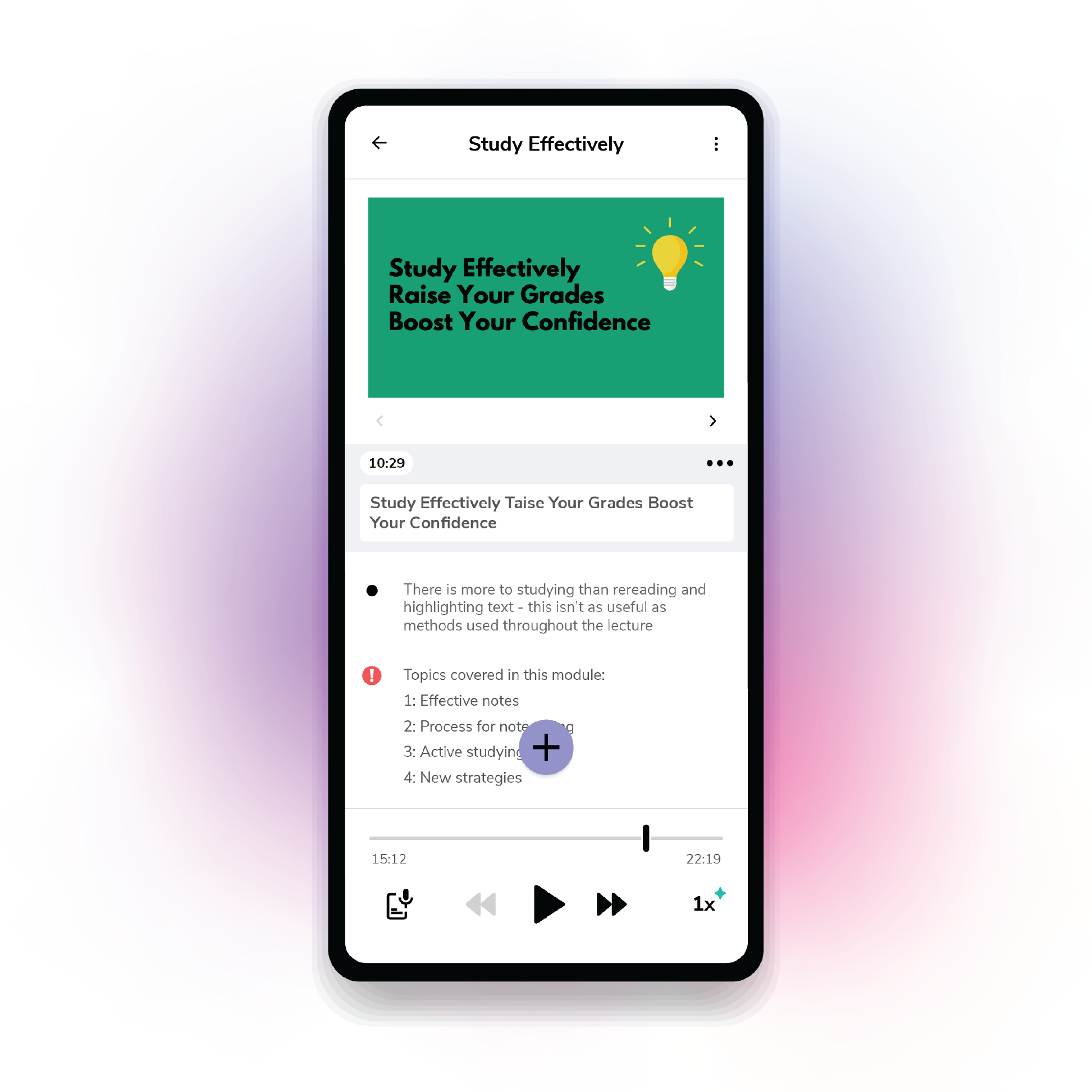
Genio Notes is an alternative note-taking tool that allows users to take recorded notes on lectures, classes, and meetings. It supports users with organizing and reviewing course materials using features such as audio playback, transcription, and live closed captions.

Features Overview
Getting Started
After logging into Genio, the main menu gives access to the following sections:
-
Home – Create new events, set reminders, and return to past recordings.
-
Collections – Organize events into collections, such as by class.
-
Tasks – View homework or tasks created within notes.
-
Search – Find content across notes and recordings.
-
Trash – Review recently deleted recordings.
Additional tools are available from the main toolbar, including options to change color themes, switch between light and dark mode, sync content between devices, access Genio’s support team and training resources, and manage account settings.

Recording in Genio
To start a recording, select “New Event”
Recording controls allow users to:
-
Start and stop recording
-
Play back audio
-
Adjust playback speed
-
Enable closed captions
-
Name the event
When recording begins, users can choose how audio is captured:
-
Microphone – Best for in-person events
-
Screen Audio – Useful for videos or virtual events
-
Both – Great for virtual meetings or breakout rooms
As audio is recorded, a horizontal bar shows whether sound is being captured. If the bar remains completely flat, the speakers voices may not be picked up during the recording.
Taking Notes While Recording
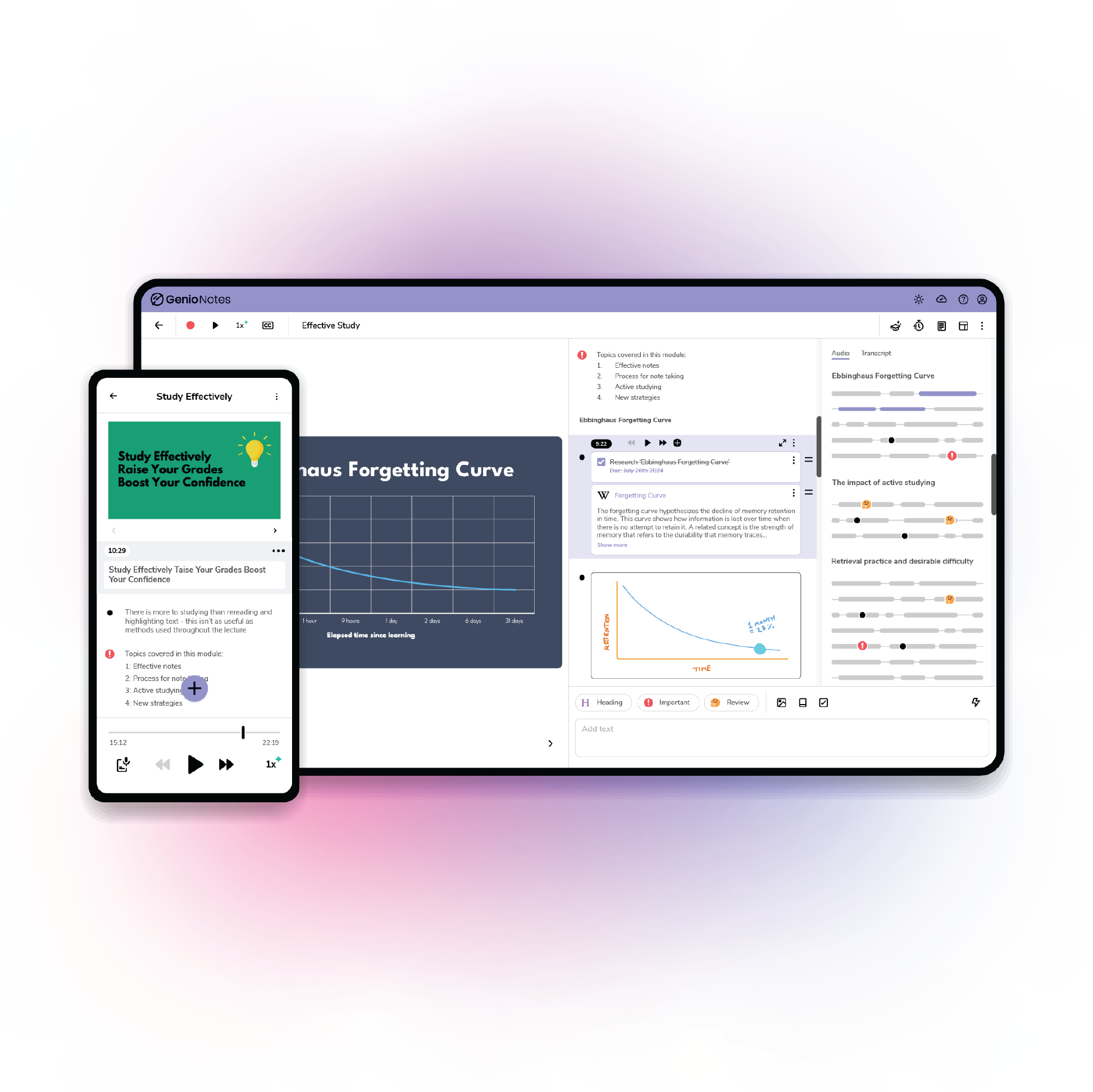
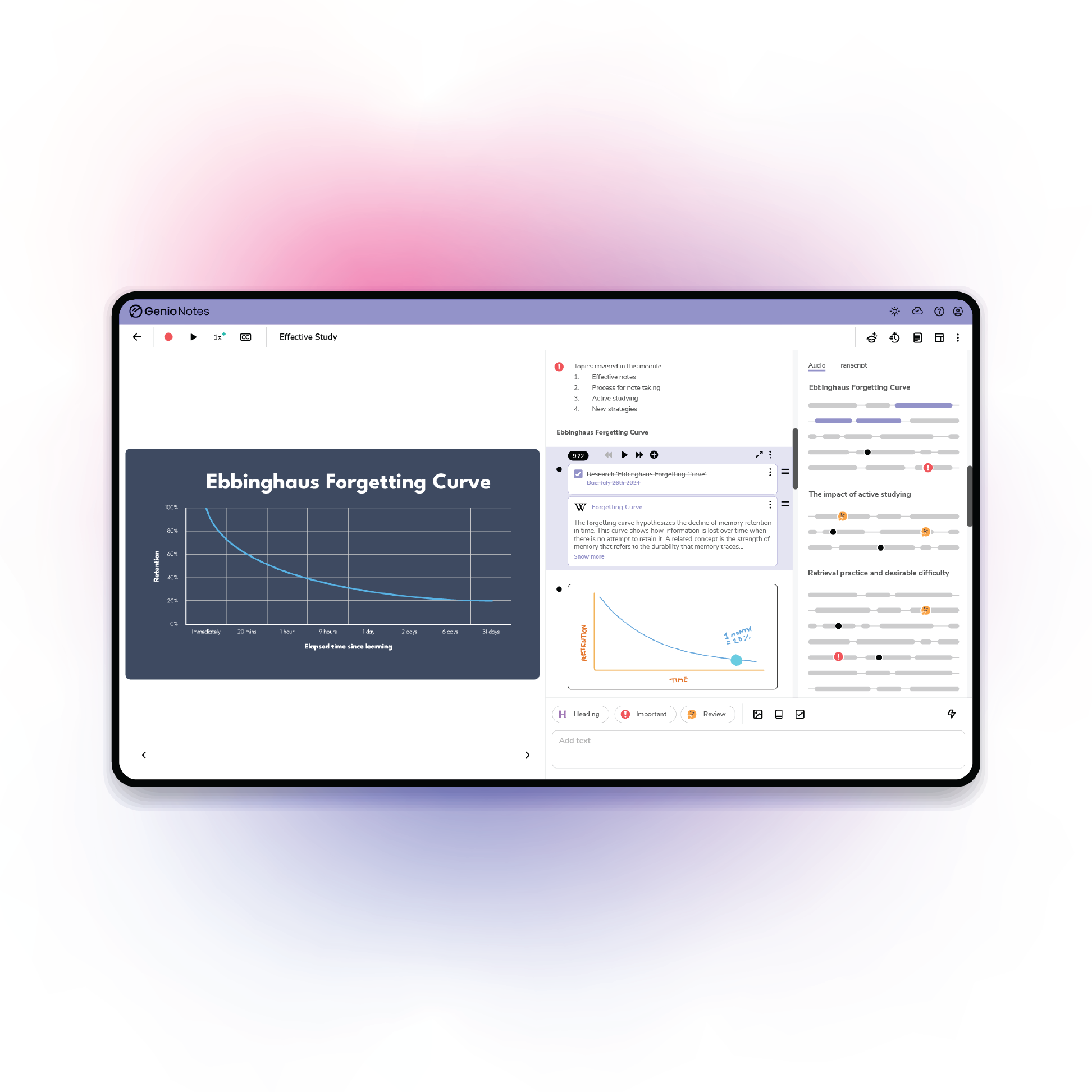
Genio allows users to take notes as they record by:
-
Adding headings to organize and section out the content
-
Mark down important sections of the recording
-
Flag difficult/missed material for later review
These tools are available in the note-taking section of the page and can be used at any point during the recording.
Users can also:
-
Add images from the internet or their device
-
Insert definitions of words via Wikipedia
-
Create tasks (reminders to do assignments, papers, etc.)
-
Use the drawing tool (useful for math/science equations)
Any tasks created during a recording will automatically appear in the Tasks section.
After Recording
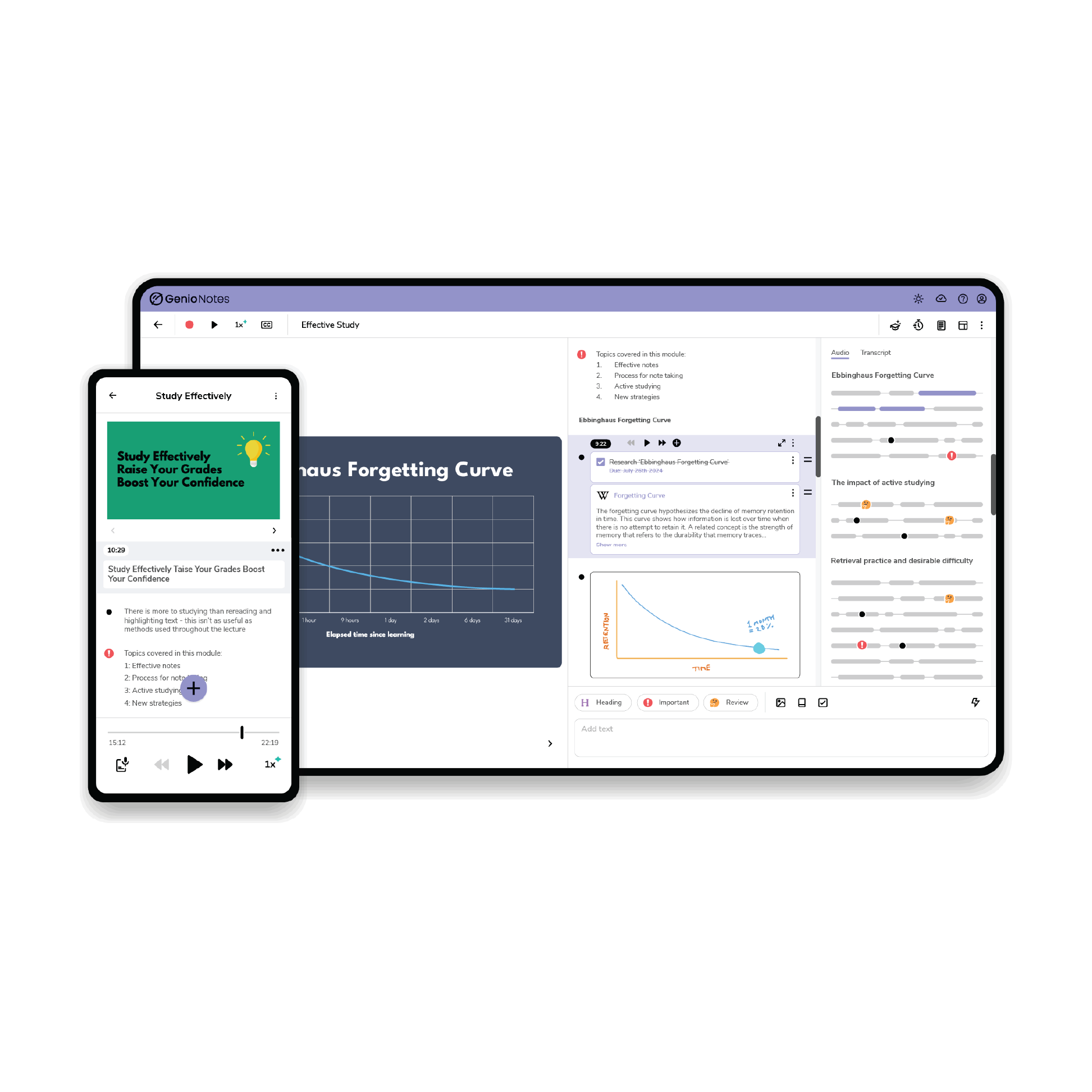
Once recording is finished, users can:
-
Generate a transcript and label speakers
-
Generate an outline of the main topics of the recording
Other tools include:
-
Focus Timer – Set a timer to study your notes
-
Quiz Creation – Automatically generates practice questions based on the recorded content
-
Paper View – Displays notes in a document-style layout
- Can be copied, printed, or exported from here.
-
Layout Options – Turn off unwanted features/sections of the page
Recordings can then be deleted or saved to a collection for future access.
Important Notice
Audio quality can vary depending on many factors, most importantly how close your device is to the speaker. Recording from a closer location generally results in clearer audio.
For support or to discuss alternative solutions such as seating and microphones, please contact the DRC: drctechnology@unco.edu
or (970) 351-2289

Mobile Usage
Genio is also available on phones and tablets. If recording issues occur due to microphone quality, internet connectivity, or battery life, using the mobile app may be a helpful alternative. All recordings will automatically sync across devices.