
Welcome Back to Campus!
Information Management and Technology (IM&T) welcomes you back to a full in-person experience on campus!
In collaboration with UNC Integrated Marketing & Communications (IM&C), the following video was created to help reduce the need for tickets for workstation setup when you return to campus. There will be numerous faculty and staff bringing equipment back, and it is encouraged that you attempt to set it back up in your office, as you did at home, before submitting a ticket. As always, IM&T is here to help if you get stuck or something is not working. If all else fails, submit a Help Desk ticket at help.unco.edu.
Setting up Your Workstation
DELL Laptop Docks
There are two types of docking stations for your DELL laptop. The WD19 is rectangular, while the WD15 is more of a square. In other words, they are similar in form and factor - with the exception of the monitor ports (The one shown in the video is a WD19).
WD19 Dock (Front)
- USB-C input
- USB input
- Speaker/microphone combination jack

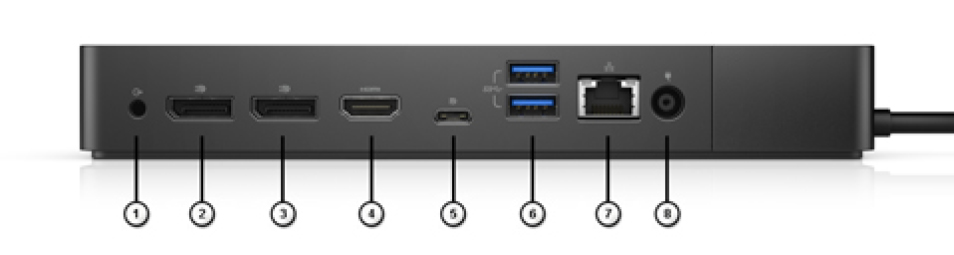
WD19 Dock (Back)
- Audio line-out to speakers
- Display port for monitor
- Display port for monitor
- HDMI port for monitors
- USB-C input
- USB input (for your keyboard & mouse)
- Ethernet input (network port to phone)
- Power supply input for docking station
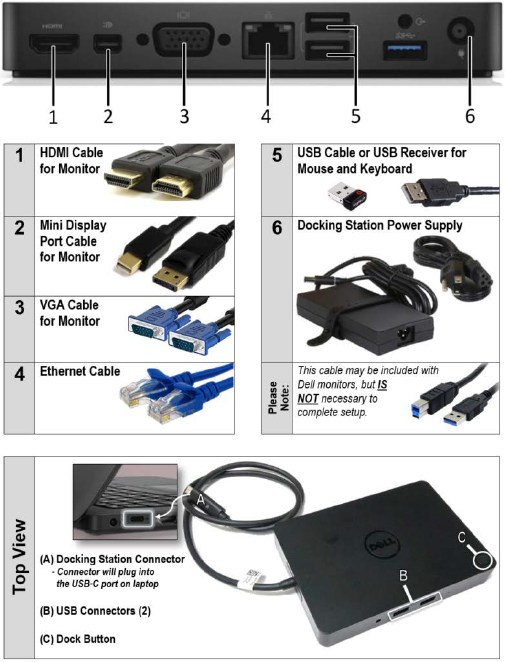
WD15 dock
Similar to the WD19 Dock, the WD15 has a mini-HDMI display port instead of a full-size display port. HDMI and VGA (3) ports are for displays/monitors. Ethernet (4) or network cables should be plugged into the wall interface, as well as your network phone, and from the network phone to your docking station. See Phone Connections below.
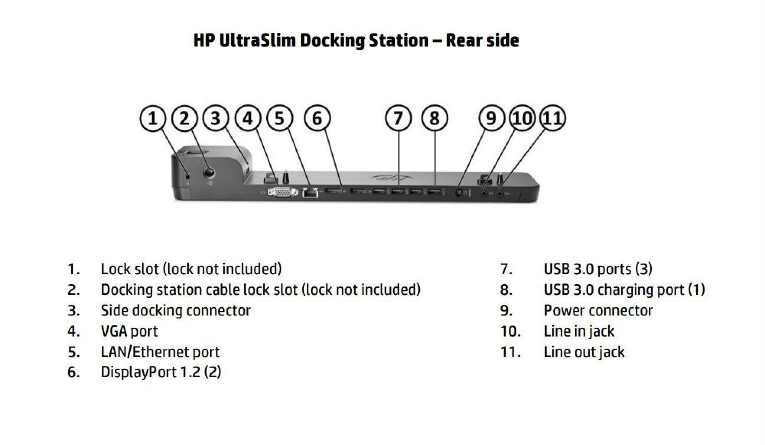
HP Slim Docks
Ethernet or network cables should be plugged into the wall interface, as well as your network phone, and from the network phone to your docking station. See Phone Connections below.
Connecting Your Slim Dock
Ensure the docking station power supply plugs into location 9 (shown in the picture) and not 2 (on the far left).
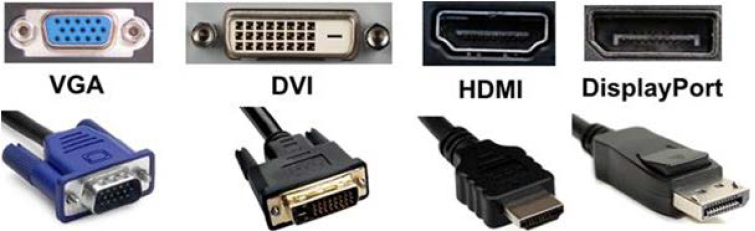
Types of Monitor or Video Connections
In the video we talked about Display Port and HDMI mainly, but in the graphic below you will see each type of video/monitor connector.
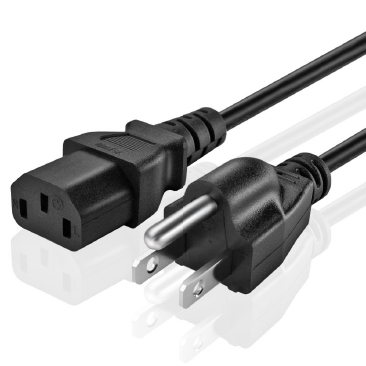
The monitor will also need power.
Adjusting Multiple Screens
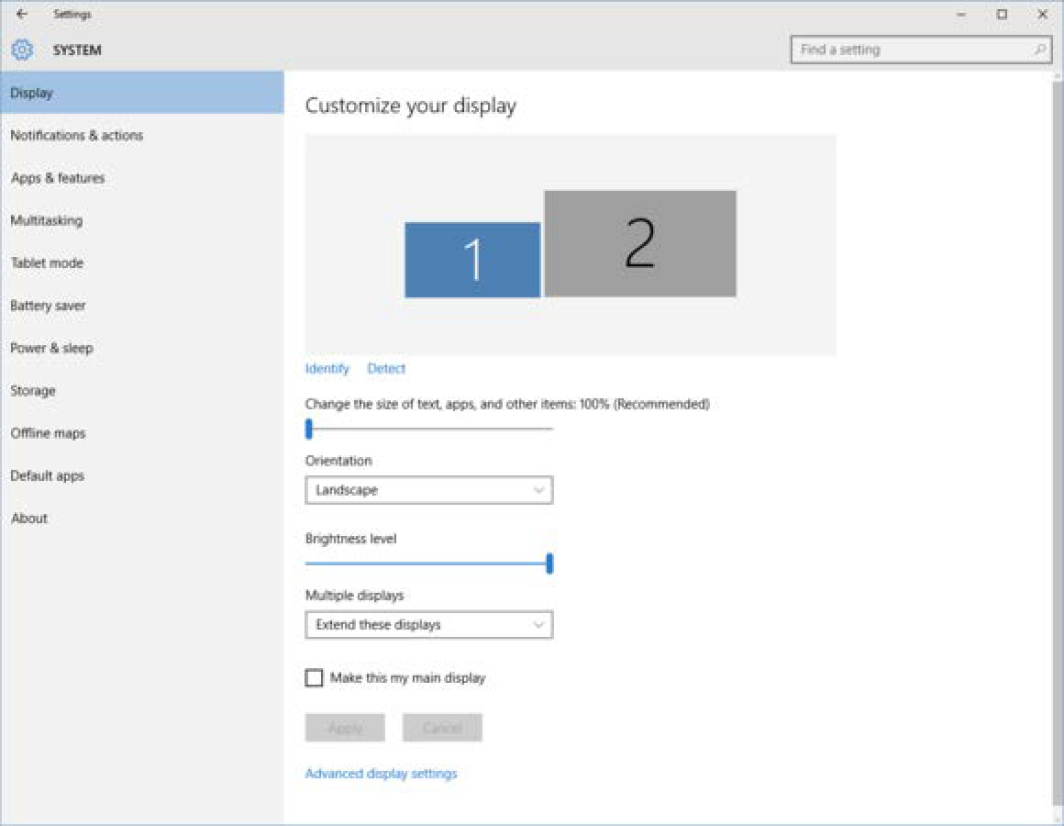
- Right-click anywhere on the Desktop
- Select 'Display Settings'
- Left-click 'Identify'
- Select the monitor you would like to adjust and drag it to the appropriate location
- Left-click 'Apply'
- Nicely done!
Phone Connections
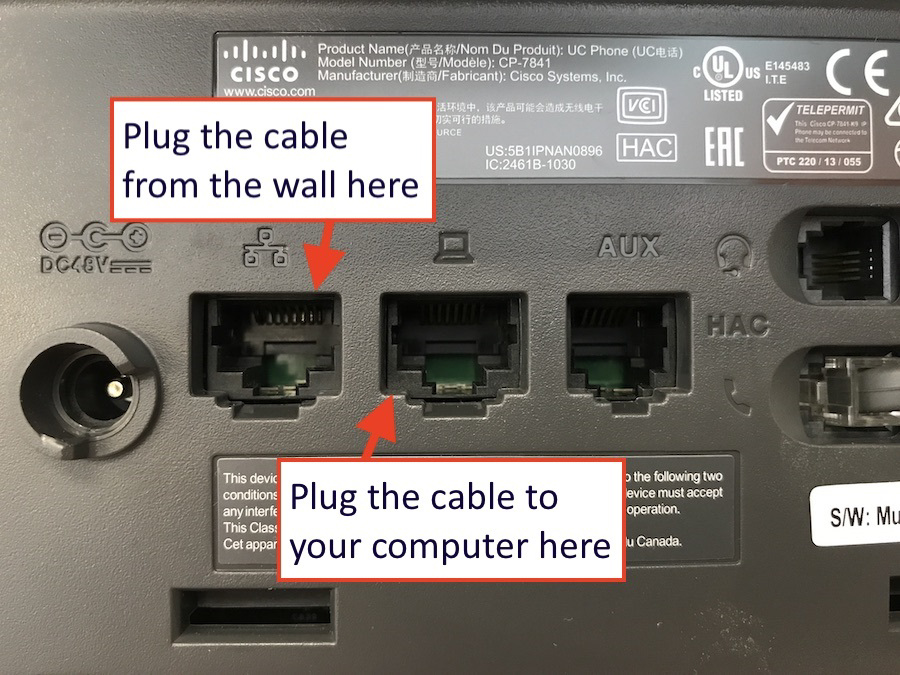
Ethernet or network cables should be plugged into the wall interface, as well as your network phone, and from the network phone to your docking station, as shown in the graphic.
Thank you for reading this far!